
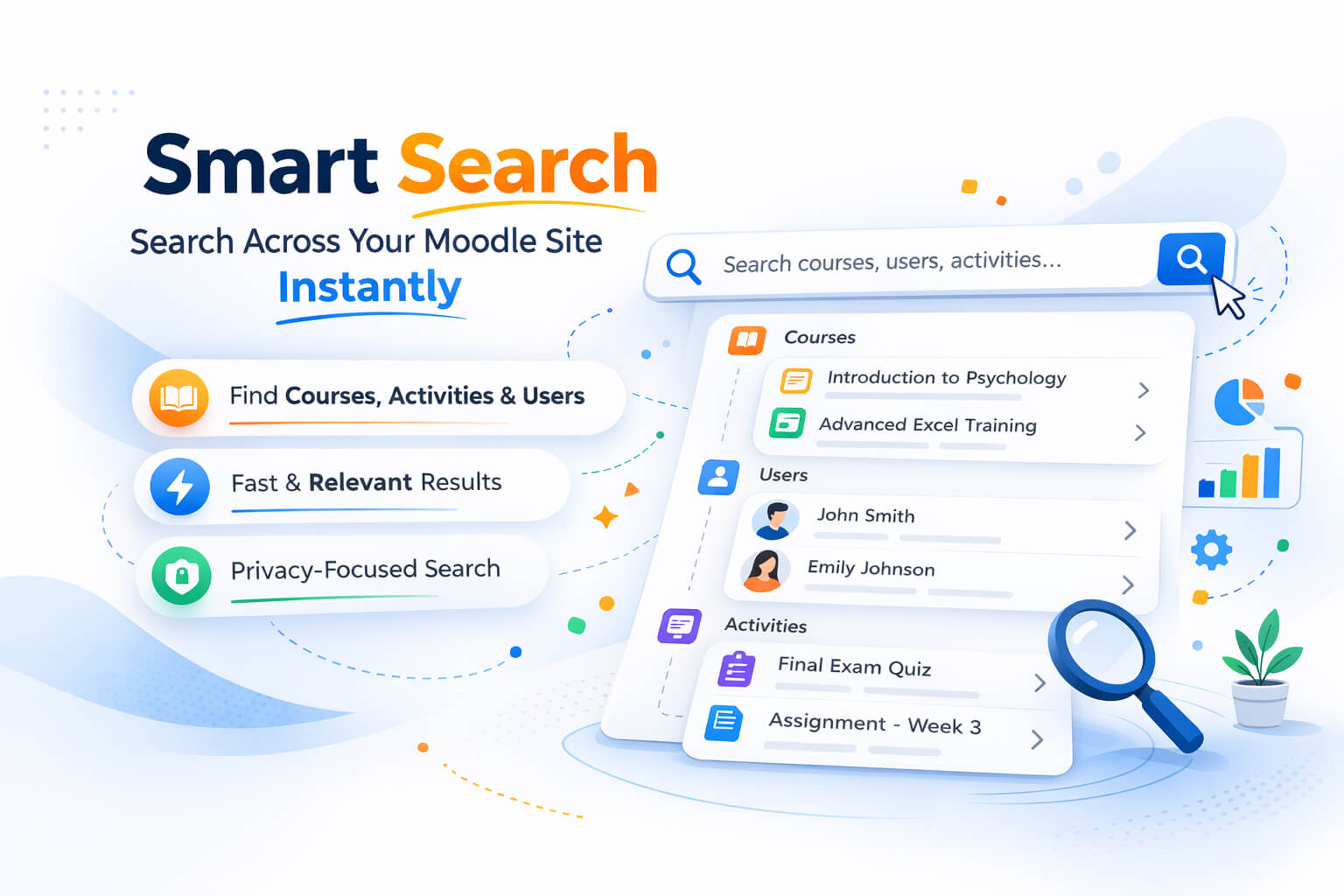
As Moodle sites grow, so does the amount of content inside them. Courses, activities, users, settings pages, and plugins can quickly add up, making navigation more time-consuming than it needs to be.

Moodle already includes Global Search, which allows users to search across indexed content in the site. Global search indexes many areas of Moodle (courses, activities, forum posts, settings, etc.). When results are returned, they may include full content excerpts or matches from indexed text, not necessarily quick navigation items.

However, in everyday usage, administrators and instructors often need something slightly different: a quick way to jump directly to courses, activities, or users without navigating through many pages.

This is where Smart Search comes in.

Smart Search is a lightweight Moodle plugin that focuses on making navigation across the LMS fast, intuitive, and efficient.

Instant Results While You Type

Smart Search works the moment a user begins typing in the search bar.

Instead of immediately sending users to a separate search page, the plugin displays instant suggestions in a dropdown panel, showing the most relevant matches with actions that can be taken on a search item.
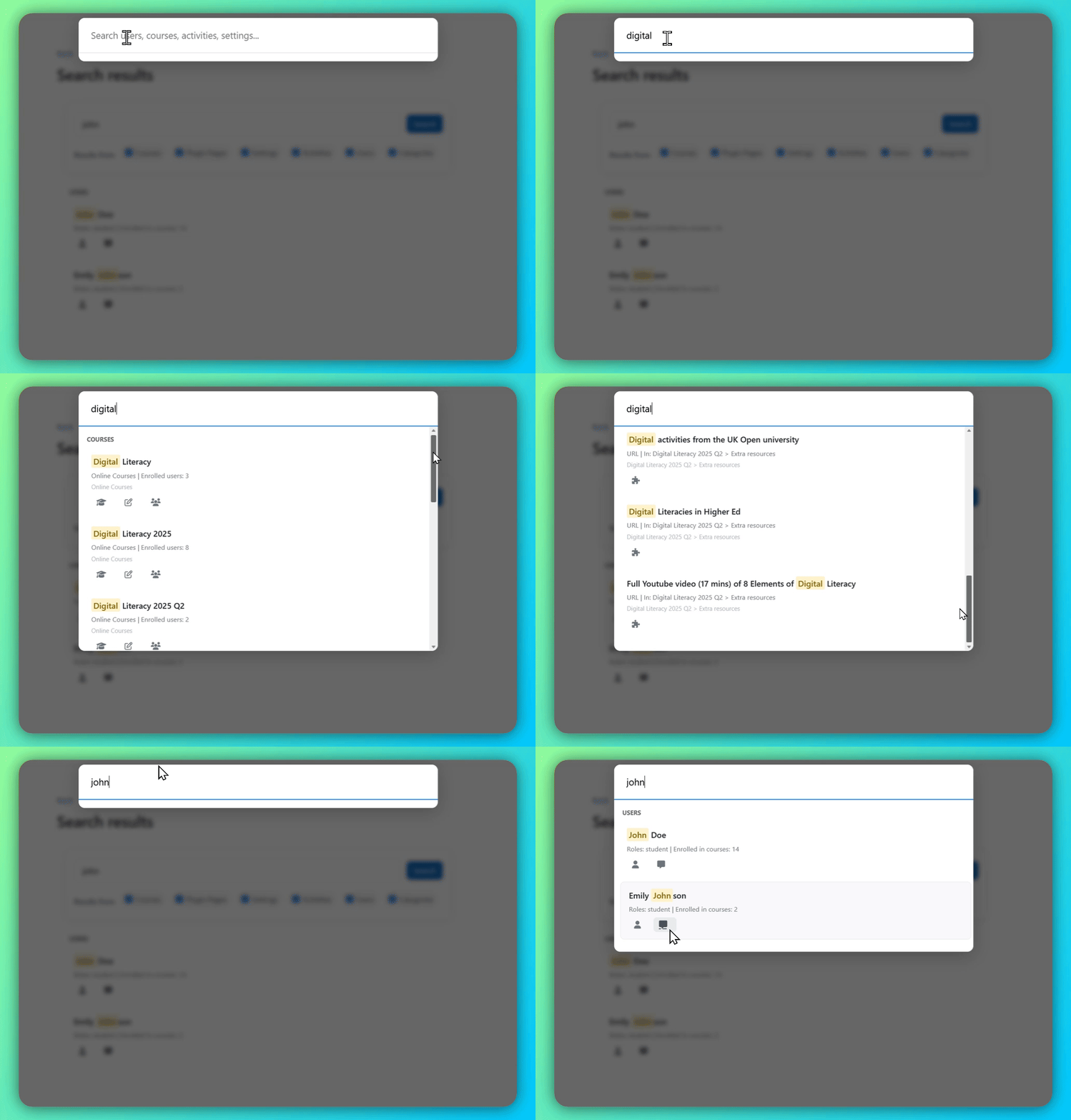
smart search quick demo

The dropdown typically shows results from categories such as:

  • Courses
  • Activities and resources
  • Users
  • Categories or other configured areas

This allows users to quickly identify and open the item they are looking for.

Opening Results Directly from the Dropdown

In many cases, users do not need to perform a full search at all.

If the desired item appears in the dropdown list, they can simply click it and open it immediately.

This makes Smart Search particularly useful for everyday tasks such as:

  • opening a course
  • locating an activity
  • finding a user profile
  • navigating to frequently used areas of the LMS

For busy administrators and instructors, this can significantly reduce the number of clicks required to move around the site.

Viewing Search Results
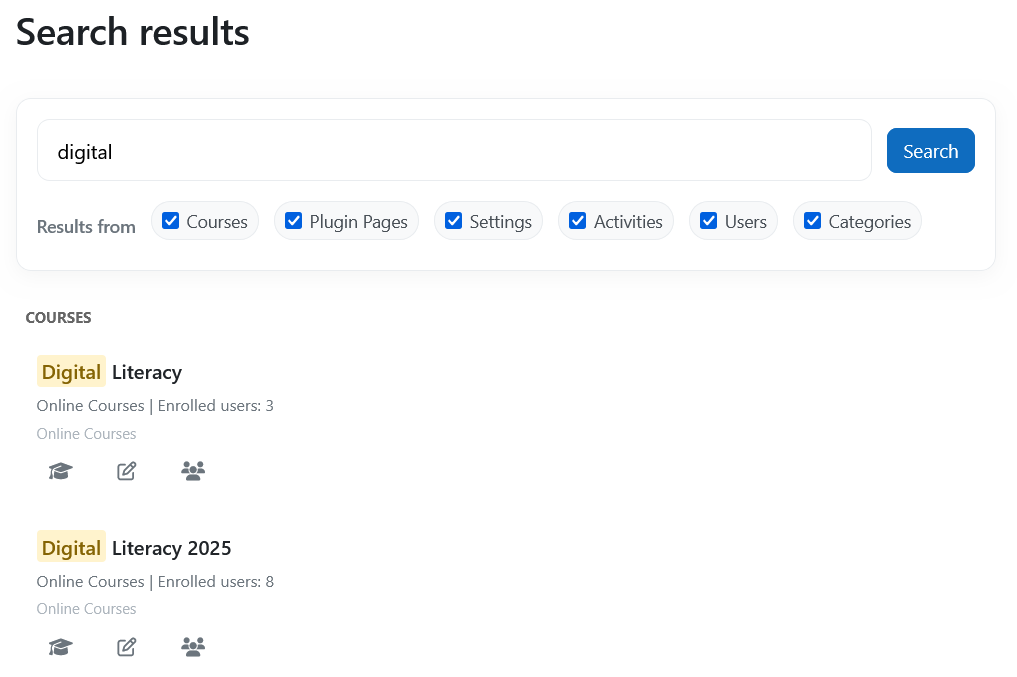
smart search results page

If more results are needed, Smart Search provides a link to open the dedicated search results page.

This page displays the complete list of matches across all searchable areas.

Users can also refine their results by selecting which categories should be included in the search.

This combination of instant dropdown suggestions and a complete results page provides a flexible search experience that works well for both quick navigation and deeper exploration.

Flexible Search Configuration

Administrators can control what Smart Search includes in its results.

Search categories can be enabled or disabled depending on the needs of the site. These may include:

  • Users
  • Courses
  • Activities and resources
  • Site settings
  • Course categories
  • Plugin and admin pages
  • Email addresses (if permissions allow)

This flexibility allows administrators to tailor the search experience to match how their LMS is used.

Understanding Search Activity

Smart Search also includes optional analytics that help administrators understand how search is being used.

When enabled, the system records search queries and provides insights such as:

  • most searched keywords
  • top search queries
  • search trends over time

These insights can help administrators identify what users are looking for most often and adjust course organization or navigation accordingly.

Analytics logging is enabled by default and stores search logs for 365 days, but administrators can disable this feature if needed.

Importantly, Smart Search does not store personally identifiable user information when recording search queries.

A More Intuitive Search Experience for Moodle

Smart Search is designed to complement Moodle’s existing search capabilities by focusing on speed and usability.

By providing instant dropdown suggestions and structured search results, it helps users locate courses, activities, and users more quickly.

For Moodle sites with large numbers of courses or users, this simple improvement can make daily navigation significantly easier.

Smart Search for Moodle

Smart Search is available as a plugin for Moodle and can be installed like any other Moodle extension.

Once enabled, it adds a modern search experience that helps administrators, instructors, and learners quickly find what they need across the platform.

Learn More

If you’d like to explore Smart Search in more detail or try it in your Moodle site, the following resources can help.

  • Documentation – Learn how Smart Search works, how to configure it, and how it integrates with Moodle. Explore Smart Search documentation
  • Download the Plugin – You can download the Smart Search plugin and install it in your Moodle site. Download here.

Want to Make Your Moodle Site Better?

Supercharge your Moodle site with plugins and fixes that boost engagement, usability, and admin efficiency — all designed to work natively inside Moodle.

Get updates, fixes, and best practices right in your inbox.

Subscription Form

As Moodle sites grow, so does the amount of content inside them. Courses, activities, users, settings pages, and plugins can quickly add up, making navigation more time-consuming than it needs to be.

Moodle already includes Global Search, which allows users to search across indexed content in the site. Global search indexes many areas of Moodle (courses, activities, forum posts, settings, etc.). When results are returned, they may include full content excerpts or matches from indexed text, not necessarily quick navigation items.

However, in everyday usage, administrators and instructors often need something slightly different: a quick way to jump directly to courses, activities, or users without navigating through many pages.

This is where Smart Search comes in.

Smart Search is a lightweight Moodle plugin that focuses on making navigation across the LMS fast, intuitive, and efficient.

Instant Results While You Type

Smart Search works the moment a user begins typing in the search bar.

Instead of immediately sending users to a separate search page, the plugin displays instant suggestions in a dropdown panel, showing the most relevant matches with actions that can be taken on a search item.

smart search quick demo

The dropdown typically shows results from categories such as:

  • Courses
  • Activities and resources
  • Users
  • Categories or other configured areas

This allows users to quickly identify and open the item they are looking for.

Opening Results Directly from the Dropdown

In many cases, users do not need to perform a full search at all.

If the desired item appears in the dropdown list, they can simply click it and open it immediately.

This makes Smart Search particularly useful for everyday tasks such as:

  • opening a course
  • locating an activity
  • finding a user profile
  • navigating to frequently used areas of the LMS

For busy administrators and instructors, this can significantly reduce the number of clicks required to move around the site.

Viewing Search Results

smart search results page

If more results are needed, Smart Search provides a link to open the dedicated search results page.

This page displays the complete list of matches across all searchable areas.

Users can also refine their results by selecting which categories should be included in the search.

This combination of instant dropdown suggestions and a complete results page provides a flexible search experience that works well for both quick navigation and deeper exploration.

Flexible Search Configuration

Administrators can control what Smart Search includes in its results.

Search categories can be enabled or disabled depending on the needs of the site. These may include:

  • Users
  • Courses
  • Activities and resources
  • Site settings
  • Course categories
  • Plugin and admin pages
  • Email addresses (if permissions allow)

This flexibility allows administrators to tailor the search experience to match how their LMS is used.

Understanding Search Activity

Smart Search also includes optional analytics that help administrators understand how search is being used.

When enabled, the system records search queries and provides insights such as:

  • most searched keywords
  • top search queries
  • search trends over time

These insights can help administrators identify what users are looking for most often and adjust course organization or navigation accordingly.

Analytics logging is enabled by default and stores search logs for 365 days, but administrators can disable this feature if needed.

Importantly, Smart Search does not store personally identifiable user information when recording search queries.

A More Intuitive Search Experience for Moodle

Smart Search is designed to complement Moodle’s existing search capabilities by focusing on speed and usability.

By providing instant dropdown suggestions and structured search results, it helps users locate courses, activities, and users more quickly.

For Moodle sites with large numbers of courses or users, this simple improvement can make daily navigation significantly easier.

Smart Search for Moodle

Smart Search is available as a plugin for Moodle and can be installed like any other Moodle extension.

Once enabled, it adds a modern search experience that helps administrators, instructors, and learners quickly find what they need across the platform.

Learn More

If you’d like to explore Smart Search in more detail or try it in your Moodle site, the following resources can help.

  • Documentation – Learn how Smart Search works, how to configure it, and how it integrates with Moodle. Explore Smart Search documentation
  • Download the Plugin – You can download the Smart Search plugin and install it in your Moodle site. Download here.